04 / Make it yours
Branding, header & navigation
Set your store identity and keep shared elements consistent across the site.
Store title, logo and site icon
- Set your store name in Settings → General. The default header/footer display the Site Title.
- For a graphical logo, edit the Header, replace Site Title with a Site Logo block and select a Media image. Check its size on mobile.
- Set the Site Icon using the control available in your WordPress version, often from the Site Logo settings. Use an icon that remains recognizable at small sizes.
- Review the Footer title separately if you customized that part previously.
Change colors and typography
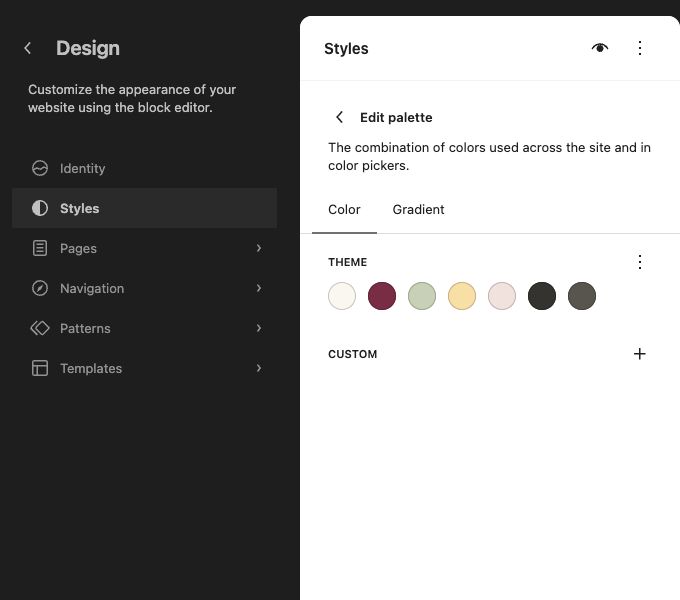
Open Appearance → Editor → Styles. Start with the palette and body/heading font families, preview several templates, then save. Purlia connects its component colors and font families to Global Styles. Individual block overrides still take precedence where you set them.
| Preset | Default | Typical role |
|---|---|---|
| Ivory | #FAF7EF | Page background |
| Berry | #742D45 | Titles, links and primary actions |
| Sage | #C8D0B5 | Soft accent surfaces |
| Butter / Rose | #F4DFA1 / #F0E2DE | Secondary accents |
| Ink / Muted | #353330 / #57554E | Body and supporting text |
The bundled font families are Cardo and Inter, served locally. Review text contrast and long headings after changing fonts or colors. Global font settings do not turn every component into the same font size; Purlia retains a responsive type hierarchy.
Further reading: WordPress Styles overview.
Edit the shared Header and announcement
- Open Appearance → Editor → Patterns → Template Parts → Header.
- Use List View to find the announcement Paragraph, store title/logo, Navigation and action blocks.
- Replace the announcement with your actual offer. A free-shipping message is display text; it does not create a shipping rule.
- Edit or remove links you do not intend to use. Save and review the header on desktop and mobile.