03 / Storefront layouts
Choose & edit a homepage
Four layouts share the Purlia visual language and use different editing paths.
Meet the four homepages
| Design | Where to edit | Pattern / template |
|---|---|---|
| Home 1 — the original storefront | Site Editor → Templates → Front Page | Purlia homepage; the Front Page template. |
| Home 2 — The slow edit | Pages → your Home 2 page | Home 2 - The slow edit. |
| Home 3 — The making club | Pages → your Home 3 page | Home 3 - The making club. |
| Home 4 — The yarn atelier | Pages → your Home 4 page | Home 4 - The yarn atelier. |
Choose the layout that best suits your product photography and content. You can publish the alternate homepages as normal pages while one remains the site’s front page.
Set up Home 1
- Create and publish a page named Home if you do not have one.
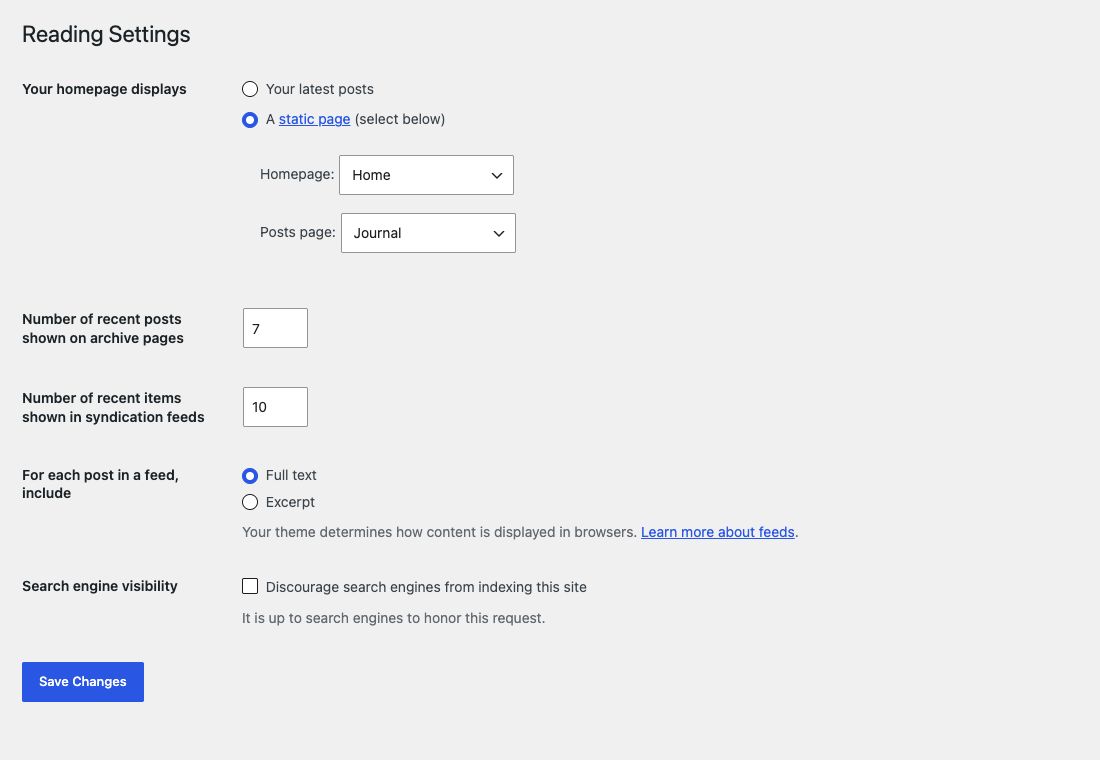
- Open Settings → Reading, select A static page and choose Home as the homepage.
- Open Appearance → Editor → Templates → Front Page.
- Use List View to find the hero, category cards, featured yarns and making panel. Edit their blocks and choose Media images.
- Save the template. Review the frontend while signed out. If the save screen lists multiple entities, confirm only the changes you intend to publish.
Set up Home 2, Home 3 or Home 4
- Create a new page under Pages → Add New.
- Open the block inserter’s Patterns tab, choose the Purlia category and insert the matching homepage pattern.
- In Page settings, select the matching Home 2, Home 3 or Home 4 template.
- Choose your photos, replace the text and update every button/link to your own destinations. Publish the page.
- To make it the main homepage, select it in Settings → Reading. Otherwise leave it as a normal page and link to it from Navigation.
Edit sections without losing their layout
- Use List View to select an Image or Group hidden beneath overlapping hero text.
- Replace copy in its existing Paragraph/Heading blocks. Keep heading levels meaningful.
- Use the Product Collection block’s query controls for your intended collection, such as featured products. Product cards read product data from WooCommerce.
- Retain Purlia CSS classes when changing text or photos. If a section loses its styling after being rebuilt, insert a fresh copy of that Purlia pattern and transfer the content.
- Use fewer sections if you have limited content; remove the whole section group rather than leaving empty headings or buttons.
Update the Home submenu
Edit the Header’s Navigation block and set each Home submenu link to its published page. Use meaningful link labels if the public store should show a single homepage. Follow Header and navigation for the editing steps.