06 / Merchandise
Catalog, products & swatches
Build a native WooCommerce catalog that works with Purlia product cards and filters.
Organize your collection
Create product categories for your actual merchandise. The sample store uses Yarn, Knitting & Crochet Kits, Needles & Hooks and Patterns. Update header and homepage category links if your category names or slugs differ. Set useful product names, descriptions and images before featuring products on a homepage.
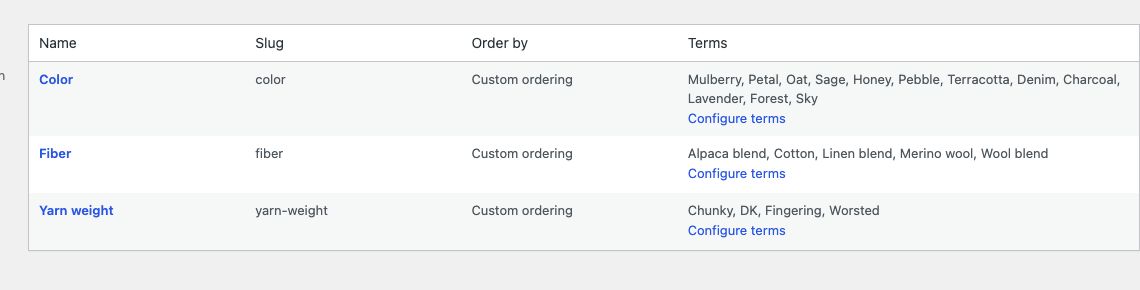
Create the global attributes
| Display name | Slug | Used by Purlia |
|---|---|---|
| Color | color | Color swatches, variation choices and the Color filter |
| Fiber | fiber | Fiber specifications and the Fiber filter |
| Yarn weight | yarn-weight | Product specifications and the Yarn weight filter |
- Open Products → Attributes and create the global attributes you need.
- Choose Configure terms for an attribute and add your values, such as Mulberry, Sage or DK.
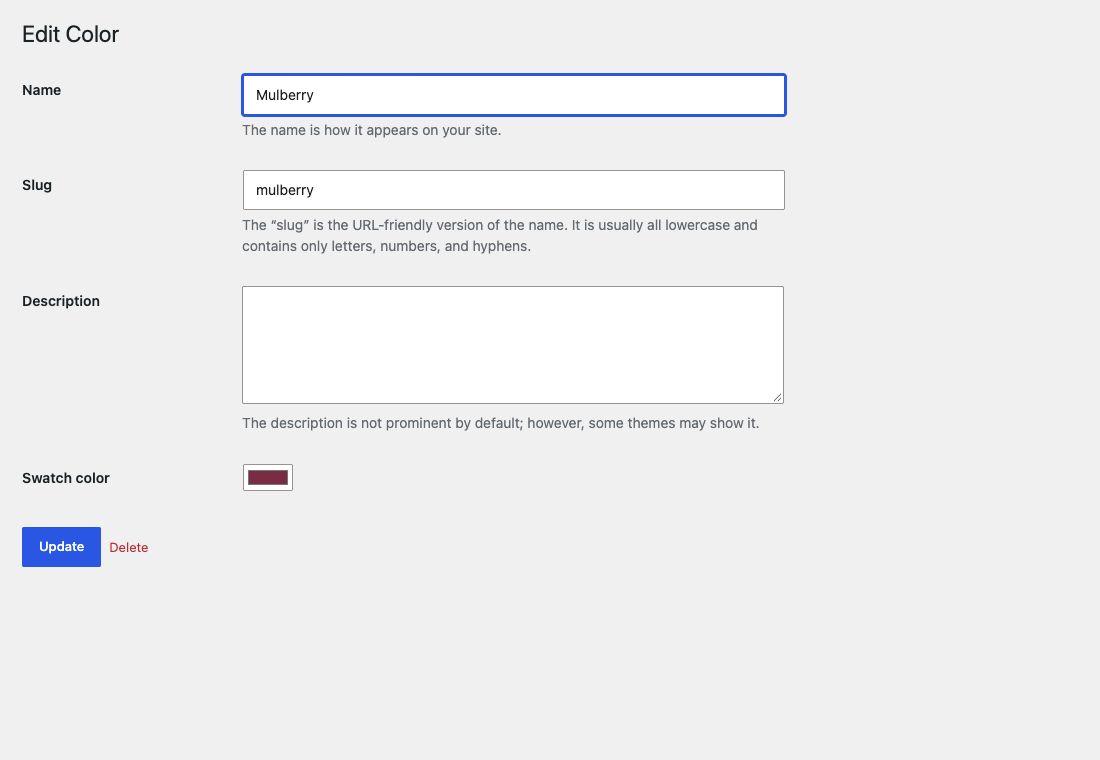
- For Color terms, set their Swatch color using the theme’s color field and save.
- Assign these global attributes to products. A per-product text attribute with the same name is not a substitute for the global Color taxonomy when you want its swatches/filter.
Add a simple product
For a tool or kit without choices, create a Simple product. Fill in its name, price, category, description, short description, image and gallery. Configure stock and shipping data for the actual item, then publish and inspect the product page. Keep sample inventory separate from stock you sell.
Add a yarn with color variations
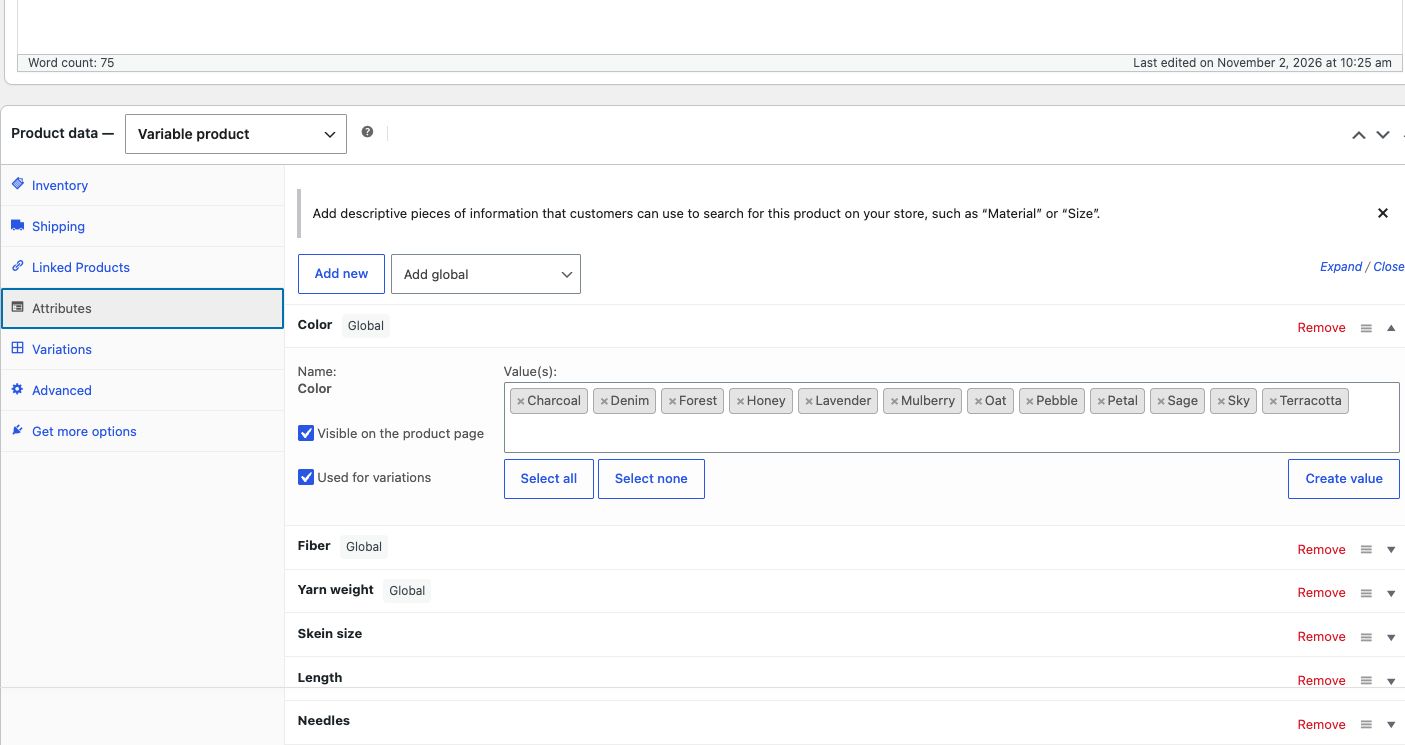
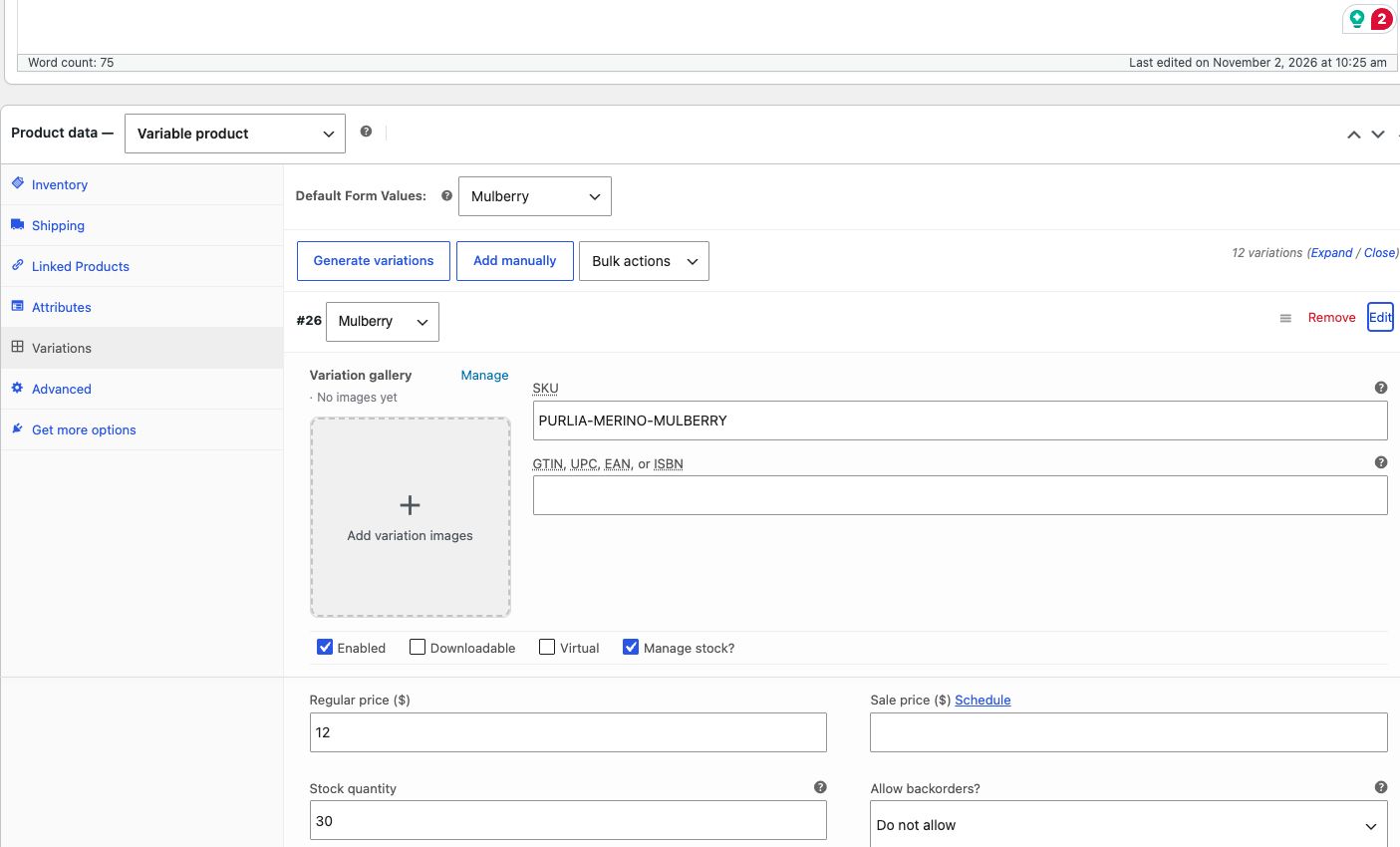
- Create a product and choose Variable product.
- Assign its global Color values and mark Color as used for variations. Save the attributes.
- Create the variations you intend to sell. Each needs a price and an available stock status. Add a variation image if its color should show a different photograph.
- Set a default color if you want the product to open with a choice selected. Publish, then select another color on the frontend and check the purchase button.
- Test two quantities and an unavailable variation on staging before selling.
Further reading: WooCommerce variable products.
Show product specifications
Purlia’s specification area reads the product’s attributes. Missing values are omitted; you do not need to fill every field.
| Attribute | Example content |
|---|---|
| Fiber / Yarn weight | Merino wool / DK |
| Skein size | 100g |
| Length | 220m / 240yd |
| Needles | 4–4.5mm / US 6–7 |
| Gauge | 22 sts × 30 rows / 10cm |
Use your real supplier specifications. Purlia demo measurements are sample content. Keep short descriptions useful for customers rather than repeating every technical attribute.
Edit the catalog and filters
Edit the Product Catalog template in the Site Editor for the Shop layout. Its sidebar uses native WooCommerce filter blocks, not a classic Widgets sidebar. The price, attribute and availability controls read the catalog’s actual data. Keep their product-filter structure intact when restyling.
- If a filter has no choices, assign the corresponding global attribute values to published products.
- A zero-price preview product can extend the catalog’s price range down to zero.
- The result count and sort control use native WooCommerce behavior.
- Test filters on mobile: open Filter products, make a selection, Apply and confirm the result count.
Reviews and pagination
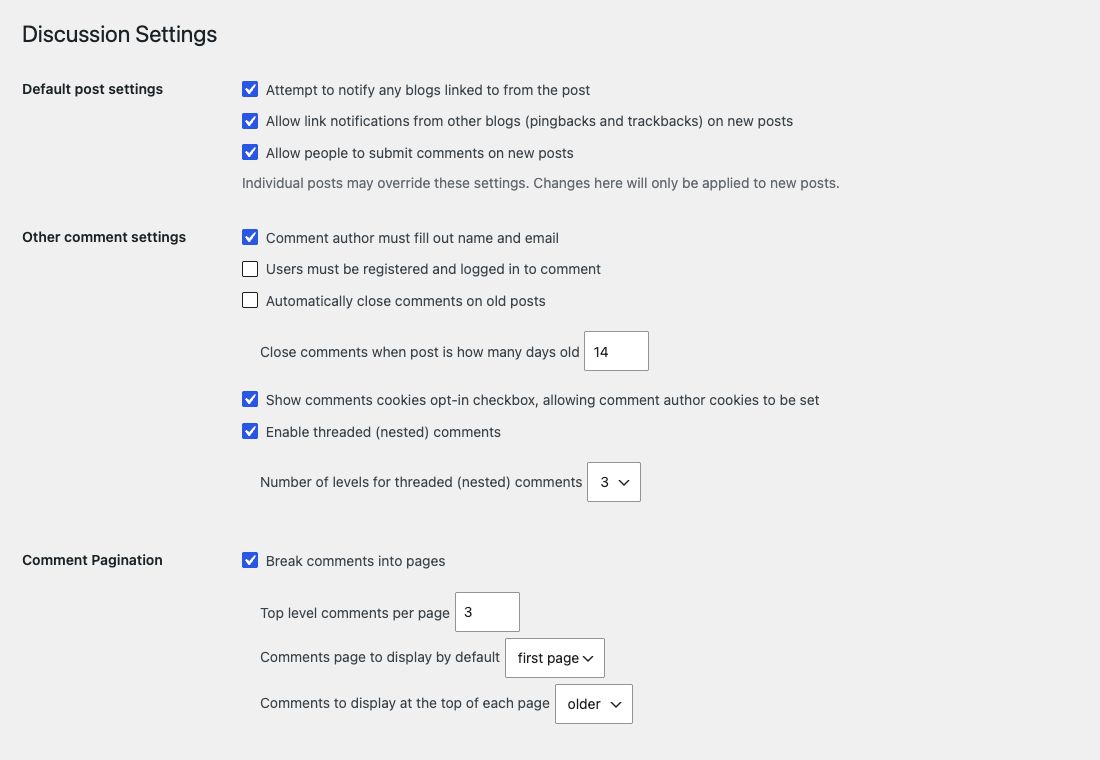
Manage product reviews with WooCommerce’s review settings and WordPress comment moderation. The review list and its page navigation inherit Purlia styling. WordPress Discussion settings affect paginated comments; test the product after changing pagination. Do not import sample demo reviews as genuine customer feedback.