05 / Content photography
Images & Media Library
Replace images with native WordPress controls and understand the shared photo parts.
Replace a page image
- Open the page in the block editor. For Home 1, open the Front Page template in the Site Editor.
- Select the Image block. If text overlaps it, select it from List View.
- Use the block’s Media or Replace control and choose an existing Media item or upload a new photo.
- Write useful alternative text, or mark a purely decorative image as decorative.
- Preview the crop and mobile layout, then save. An image used in several blocks is not automatically replaced in every block when you choose a different attachment here.
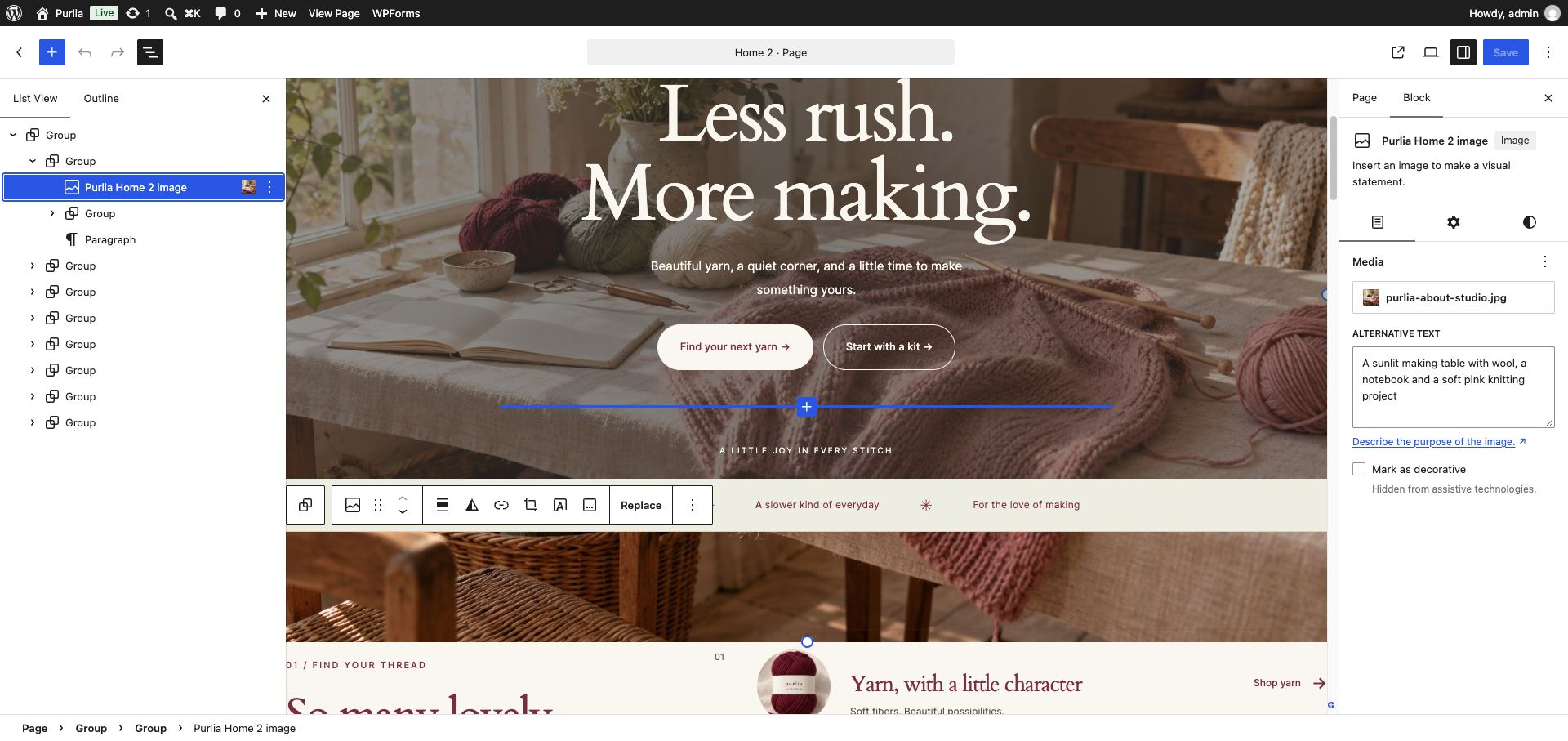
Know which image to edit
| Photo | Where it is controlled |
|---|---|
| Home 1 hero/category/making images | Front Page template → its Image blocks |
| Home 2–4 and editorial page photos | The page’s Image blocks |
| Shop mega menu photo | Template Part → Shop feature image |
| Login, registration and password recovery photo | Template Part → Account welcome image |
| Account dashboard feature photo | Template Part → Account dashboard image |
| Product cover and gallery | The WooCommerce product’s image/gallery settings |
| Journal card/article featured image | The post’s Featured Image |
| Empty-state artwork | The relevant Cart, Mini Cart, Search or 404 template/pattern Image block |
To edit a shared photo, open Appearance → Editor → Patterns → Template Parts, choose its named part, select the Image block and choose Media. The theme does not require editing a PHP image URL.
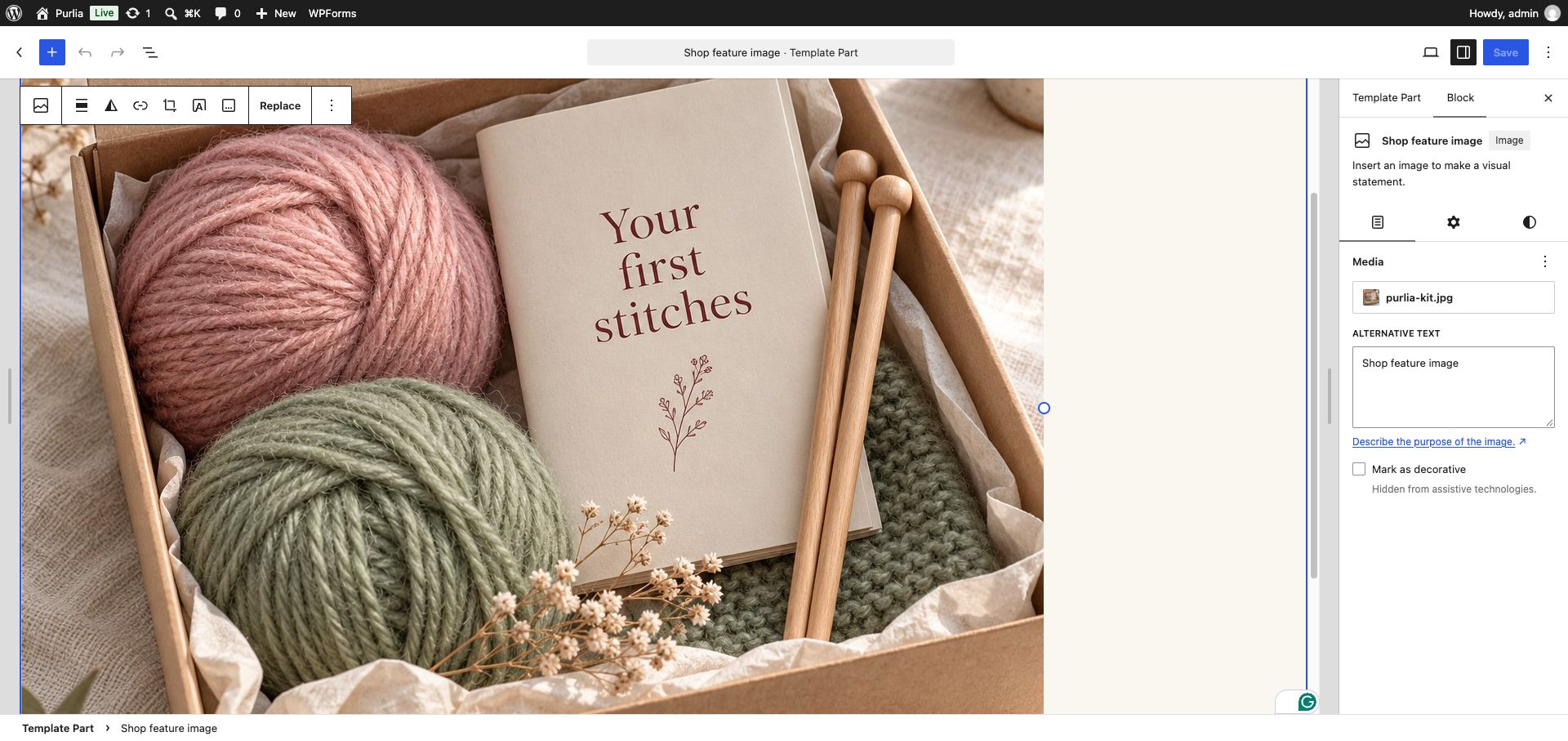
Prepare useful images
| Use | Suggested starting size | Composition |
|---|---|---|
| Wide hero or editorial photo | Around 1600 × 1000 px | Keep important subjects away from crop edges. |
| Product cover/gallery | Around 1200 × 1200 px | Use consistent framing for catalog cards. |
| Category card | Around 1000 × 1000 px | Allow room for a landscape crop. |
| Logo | A clean, high-quality source | Check small-screen legibility and background contrast. |
These are starting points, not upload requirements. Compress photographs before uploading. Use JPEG, PNG or a format supported by your WordPress installation. Purlia uses attachment metadata for responsive sizes; available optimized WebP sidecars may be used for marked demo images. SVG uploads are not enabled by the theme.
If an image is missing or looks cropped
- Confirm the attachment exists in Media and its original file is accessible.
- Re-select the image if content was imported without its attachment or its image ID was not repaired.
- Review the Image block’s aspect ratio/scale controls, then preview the actual page: Purlia uses cover crops in some layout areas.
- Use a composition with more breathing room if the crop cuts off the subject.
- After migrating from an older demo, follow the Media migration workflow instead of restoring hardcoded theme-file URLs.